
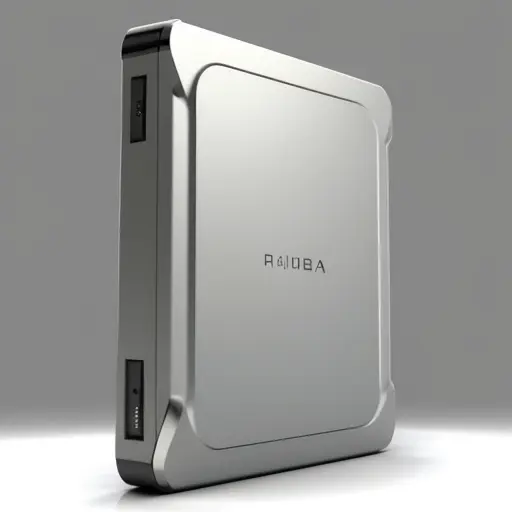
Iomega ZIP 750 – High-Speed External ZIP Drive (750 MB)
Price: $189.00
- Unmatched Speed and Capacity: The Iomega ZIP 750 MB drive is the fastest and most durable ZIP drive available, transferring data at an impressive 7 Mbps. It offers the highest capacity among ZIP drives, making it ideal for backup and archiving.
- Automatic Backup Software Included: Comes with Iomega Automatic Backup software to securely back up your important files with ease. Simply select the files, set your schedule, and let the software handle the rest.
- Portable File Synchronization: The included Iomega Sync software ensures seamless file syncing between multiple computers, perfect for mobile users. Always have the latest version of your files on hand.
- Expandable Storage: Each 750 MB disk adds additional storage to your computer. Expand as needed without worrying about data loss, thanks to the durability of ZIP disks.
- Active Disk Technology: Run applications directly from your ZIP disk without installation. Enjoy unique software functionality everywhere you go.
- Built for Durability: ZIP disks are resistant to scratches and other damage, ensuring long-term data protection.
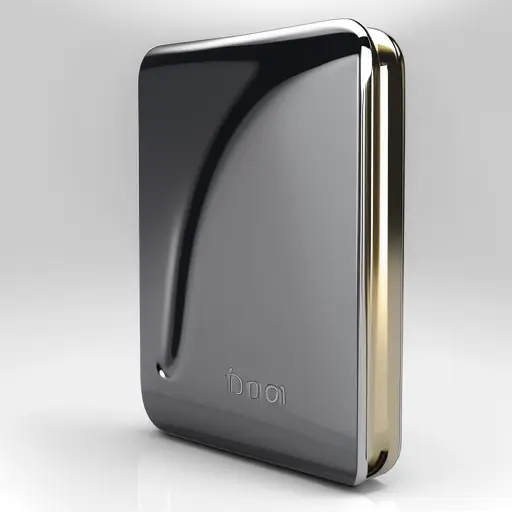
Iomega Ego RPHD-UG3 1TB USB 3.0 Rugged External Hard Drive
Price: $26.90
- Massive Storage Capacity: With a 1TB storage space, this external hard drive is perfect for storing all your important files, photos, videos, and more.
- Durable and Rugged Design: Built with a rugged enclosure, the Iomega Ego RPHD-UG3 is designed to withstand daily wear and tear, making it ideal for on-the-go lifestyles.
- High-Speed USB 3.0 Interface: Enjoy fast file transfers with USB 3.0 compatibility, ensuring quick backups and seamless data access.
- Compact and Portable: The 2.5-inch form factor is lightweight and easy to carry, making it a convenient storage solution for laptops and PCs.
- Universal Compatibility: Works with both laptops and desktops, supporting USB and USB 3.0 interfaces.
- Trusted Quality: Manufactured in the Philippines, this drive combines reliability with affordability.
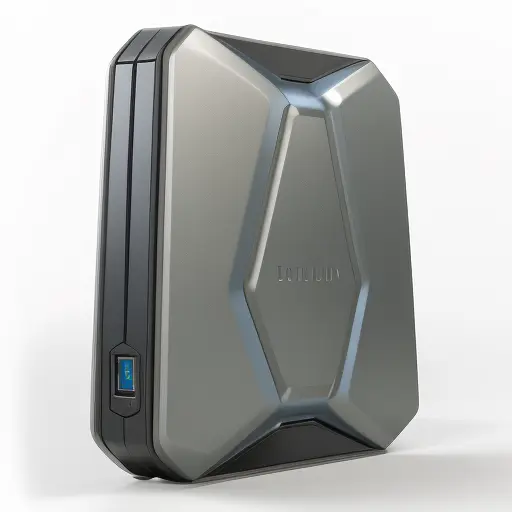
Iomega Zip 250 Z250P External Storage Drive (Includes Adapter and 250 MB Disk)
Price: $49.99
- Compact External Storage Solution: The Iomega Zip 250 Z250P offers 250 MB of reliable storage, perfect for backups, file transfers, and archiving.
- Ready to Use: Includes the drive, adapter, and a 250 MB disk, so you can start storing important data right out of the box.
- Durable and Dependable: ZIP technology ensures your data is safe and secure, with disks designed to resist scratches and damage.
- Portable and Lightweight: Small form factor makes it easy to carry this external drive with you wherever you go.
- Versatile Compatibility: Works seamlessly with older systems requiring external storage solutions.
My Journey Through the Maze of Modern Storage Options – What I Wish I’d Known Before Buying
As I sit here amid the gentle hum of my external drives, watching the tiny indicator lights blink in their reassuring rhythm, I can’t help but reflect on how far we’ve come in the world of data storage. Remember those clunky Zip drives from the late 90s? That distinctive click as you inserted a disk? That was my introduction to the Iomega brand, long before I understood the critical importance of reliable backup solutions.
Fast forward to today, and choosing the right external hard drive has become one of the most important tech decisions you can make for protecting your digital life. After three catastrophic data losses (including my entire wedding photo collection – a mistake I’ll never repeat), I’ve learned the hard way that not all external drives are created equal.
This guide represents everything I wish someone had told me before I started investing in external storage solutions. Whether you’re a creative professional managing terabytes of project files, a student backing up research, or simply someone who values their family photos, I hope my experiences will help you navigate the sometimes overwhelming world of Iomega external hard drives.
The Evolution of Iomega: A Brief History
Before diving into specifications and buying recommendations, it’s worth understanding Iomega’s journey. For those unfamiliar with the brand, Iomega Corporation was a pioneer in removable storage devices. Founded in 1980, the company revolutionized portable storage with products like the Bernoulli Box, Zip drive, and Jaz drive.
In 2008, EMC Corporation acquired Iomega, and later, in 2013, Lenovo purchased parts of EMC’s business, including the Iomega brand. The brand was subsequently renamed to LenovoEMC, though many products still carried Iomega’s legacy design and engineering principles. More recently, the brand has evolved again, with products now falling under various Lenovo storage solution lines.
Despite these corporate changes, what made Iomega stand out—reliability, innovation, and user-friendliness—continues to influence their storage solutions. I’ve owned Iomega products through several of these transitions, and while the name on the box has changed, the core quality that drew me to the brand has remained largely consistent.
Understanding Your Storage Needs: The First Step
Before you start comparing technical specifications, it’s essential to honestly assess what you need from an external hard drive. This self-assessment saved me hundreds of dollars on my most recent purchase when I realized I didn’t need the premium features I was initially eyeing.
Capacity Considerations
When I bought my first external hard drive, I followed the common advice to “buy the largest you can afford.” While that’s not terrible guidance, it’s a bit simplistic. Here’s a more nuanced approach I’ve developed over the years:
- For basic document backups and occasional photo storage: 1-2TB is typically sufficient for most users. My parents use a 1TB drive for backing up their essential documents, photos, and a modest music collection, and they’ve only filled about 40% of it over three years.
- For creative professionals working with video: Start at 4TB minimum. After switching to 4K video for my YouTube channel, I filled a 2TB drive within six months. Video files, especially raw footage, consume space at an alarming rate.
- For comprehensive media libraries: Consider 8TB or larger. My complete movie collection, music library, and professional photo archive currently occupy just over 7TB, and it grows monthly.
Remember to factor in future growth. I generally recommend purchasing a drive with at least 30% more capacity than you currently need, based on the rate your storage needs have grown in the past.
Speed Requirements
Drive speed was something I completely overlooked in my early purchases, only to regret it when waiting for large file transfers to complete:
- For simple backups and document storage: Standard drives with 5400 RPM are adequate. The speed only matters when you’re backing up or retrieving files, which isn’t frequent for most users.
- For active work drives (editing directly from the drive): Look for 7200 RPM minimum in HDDs, or better yet, SSD options. When I started editing video directly from an external drive, the jump from 5400 RPM to 7200 RPM was immediately noticeable in timeline scrubbing and render times.
- For frequent large file transfers: Consider SSD or newer NVMe options. The time savings add up significantly when regularly moving large files—what used to take me 40 minutes now takes under 10.
Portability vs. Desktop Solutions
This consideration depends entirely on how and where you’ll use your drive:
- Desktop external drives: Typically larger, often requiring separate power supplies, but offering more capacity for the price. I use desktop models for my home office where they stay permanently connected.
- Portable drives: Smaller, bus-powered (drawing power from your computer’s USB port), perfect for work-on-the-go. I always carry a rugged portable drive in my laptop bag for client meetings and on-site work.
Be honest about your mobility needs. I initially bought all portable drives for “flexibility,” only to realize most never left my desk—I could have gotten more storage for the same price with desktop models.
Decoding Iomega Drive Technologies
Iomega (now under Lenovo) has offered various technologies over the years. Understanding these will help you make informed decisions:
HDD vs. SSD: The Fundamental Choice
- Hard Disk Drives (HDD): The traditional spinning disk technology offers more storage for less money but at the cost of speed and durability. My 8TB desktop HDD cost roughly the same as a 2TB SSD.
- Solid State Drives (SSD): With no moving parts, SSDs offer significantly faster performance and better durability against drops and bumps. The speed difference is dramatic—when I switched my working drive to SSD, file transfers that used to take 20 minutes completed in under 4.
The hybrid solution I’ve found most effective: Use larger, more economical HDDs for archival storage and less frequently accessed files, while investing in a smaller SSD for current projects and files you access daily.
Connection Types Matter More Than You Think
The interface between your drive and computer can be a significant bottleneck:
- USB 3.0/3.1: The most common current standard, offering good performance for most users. My USB 3.1 drives consistently transfer at about 100-120MB/s, which handles most day-to-day needs.
- USB-C/Thunderbolt 3 or 4: Offering dramatically faster transfer speeds, especially important for video work. My Thunderbolt drive can transfer at up to 40Gbps—essential when I’m backing up an entire day’s 4K video shoot.
- Network Attached Storage (NAS): For multi-user access or home server setups. Setting up a NAS changed how my entire household accesses and backs up files—everyone can connect simultaneously from any device.
I made the mistake of buying a high-speed SSD then connecting it through an older USB 2.0 port, essentially putting a Ferrari on a dirt road. Make sure your computer’s ports support the speeds your drive is capable of.
Popular Iomega External Hard Drive Series
Over the years, Iomega (and later Lenovo) has developed several distinct product lines, each targeting different user needs:
Ego Series
The stylish Ego drives were designed with aesthetics in mind, featuring colorful, interchangeable outer shells. While limited in capacity by today’s standards (typically 1-2TB), they remain popular for their distinctive look and portability.
I used an Ego drive throughout college, and its drop protection saved my thesis more than once. The rubber bumper absorbed the shock when it tumbled off my desk during an all-night writing session.
Prestige Series
The Prestige drives emphasize sleek design and reliability for everyday use. Available in both portable and desktop configurations, they strike a good balance between performance and value.
My Prestige desktop drive has been running daily backups for over four years without issues—the definition of reliable, if unexciting, performance.
eGo Helium
Designed specifically to complement Apple aesthetics, the aluminum-encased eGo Helium drives were popular among Mac users. Though discontinued, they can still be found on secondary markets.
A photographer friend still swears by his Helium drives for their reliability and how perfectly they match his silver MacBook Pro.
StorCenter Network Drives
Moving beyond simple external drives, the StorCenter line offered networked storage solutions for small businesses and tech-savvy homes. These multi-drive systems provided redundancy and shared access.
Setting up a StorCenter px4-300d in my home office revolutionized how I manage backups—automatic, redundant, and accessible from anywhere.
Reliability Features: What to Look For
When I lost those irreplaceable wedding photos, I learned the hard way that reliability should be the number one factor in your purchasing decision. Here are the features that have proven most valuable in my experience:
Redundancy Options
For critical data, consider drives or systems with built-in redundancy:
- RAID configurations: Available on multi-drive systems, RAID (Redundant Array of Independent Disks) creates automatic backups across multiple drives. My StorCenter’s RAID 5 setup means I can lose an entire drive without losing any data.
- Dual-drive products: Some external drives contain two drives that mirror each other for instant backup. Though more expensive, they’ve saved me more than once when a drive failed during a critical project.
Backup Software
Many Iomega drives come with backup software. While I initially dismissed these as bloatware, I’ve come to appreciate their value:
- Automated scheduling: Set-and-forget backup plans ensure your data is protected even when you forget. My Sunday evening automatic backups have recovered files I didn’t even realize I needed to save.
- Versioning capabilities: Some software keeps multiple versions of files, letting you roll back to previous states. This saved an entire project when a client wanted to revert to an earlier design concept.
Build Quality Indicators
Physical construction greatly affects longevity:
- Heat dissipation: Look for drives with good ventilation or aluminum cases that help dissipate heat. My desktop drive with a built-in fan runs noticeably cooler than my fanless models.
- Shock resistance: Especially important for portable drives. The rubber bumper on my portable drive has protected it through countless bumps in my backpack.
- Connection port durability: Reinforced ports resist damage from frequent plugging/unplugging. After wearing out ports on cheaper drives, I now consider this essential.
Price vs. Performance: Finding the Sweet Spot
One of the most challenging aspects of buying an external hard drive is determining where the price/performance curve makes sense for your needs. Through much trial and error, I’ve developed some guidelines:
When to Save
- For archival storage that’s accessed infrequently: Less expensive HDD drives make economic sense. I store completed projects and personal archives on basic drives that are only powered up when needed.
- When redundancy exists elsewhere: If you’re already backing up to cloud services, you can opt for simpler drives without redundancy features. My less critical files are stored on more economical drives because they’re also backed up to the cloud.
When to Splurge
- For drives you use daily: The speed difference of an SSD is worth every penny for frequently accessed files. My primary working drive is the fastest SSD I could afford, and it has paid for itself in time saved.
- For truly irreplaceable data: Better redundancy and reliability features are worth the premium. Family photos, critical business documents, and complete project archives justify the extra expense of drives with better protection.
- For specific professional needs: Specialized features like hardware encryption or ruggedized construction. As a consultant who visits clients with sensitive data, my encrypted portable drive cost twice as much as a regular model but provides essential security.
Common Pitfalls to Avoid
Over the years, I’ve made nearly every mistake possible when purchasing external drives. Learn from my errors:
Overlooking Power Requirements
Not all portable drives can run on bus power alone, especially larger capacity models. I once purchased a “portable” 5TB drive for a business trip, only to discover it required a power adapter I hadn’t packed. Disaster.
Always verify whether a drive is truly bus-powered before counting on it for mobile use.
Ignoring Warranty Terms
Warranty periods vary dramatically between models and can indicate the manufacturer’s confidence in their product. My longest-lasting drive came with a 5-year warranty, while most of the drives that failed were covered for only 1 year.
I now consider warranty length a key indicator of expected quality and factor it into my purchase decisions.
Forgetting About Noise
Some drives, particularly high-capacity desktop models, can be surprisingly loud. The constant whirring drove me crazy when I placed a desktop drive on my desk rather than on the floor or a separate shelf.
If your drive will be in your immediate workspace, consider noise levels in your decision.
The False Economy of Buying Used
While I’m usually an advocate for buying used electronics, external hard drives are the exception. The unpredictable wear and unknown history make used drives a significant risk for important data.
I lost an entire video project to a seemingly perfect used drive that failed just two months after purchase. Never again.
Setting Up Your New Iomega Drive: Best Practices
Once you’ve selected and purchased your drive, proper setup ensures optimal performance and reliability:
First Steps After Unboxing
- Update firmware immediately: Check the manufacturer’s website for the latest firmware. Outdated firmware caused intermittent disconnection issues with my desktop drive until I updated it.
- Run diagnostic tests: Most drives come with diagnostic utilities—use them to verify your drive is functioning properly before trusting it with important data.
- Configure backup software: Take the time to set up the included backup software properly. My customized backup schedule runs more intensive backups overnight when I’m not using my computer.
File System Decisions
The choice of file system affects compatibility and performance:
- NTFS: Native to Windows, offering good performance and reliability, but read-only on Mac without additional software.
- exFAT: Compatible with both Windows and Mac, though with fewer recovery options than NTFS or HFS+.
- HFS+ or APFS: Mac-native formats, with APFS optimized for SSDs but not readable on Windows without third-party software.
I maintain one drive formatted as exFAT specifically for cross-platform file transfers when working with clients using different systems.
Security Considerations
If your drive will store sensitive information, take advantage of security features:
- Hardware encryption: Some Iomega drives offer built-in encryption capabilities that don’t impact performance.
- Password protection: Set up password protection through the drive’s software if available.
- Separate partitions: Consider creating separate partitions for sensitive and non-sensitive data. I maintain a small encrypted partition specifically for client contracts and financial information.
Maintenance Tips for Longevity
Proper maintenance has kept several of my drives functioning well beyond their expected lifespan:
Physical Care
- Keep drives cool: Ensure proper ventilation around desktop drives. I elevated my desktop drive on a small stand to improve airflow underneath.
- Handle with care: Even when not in operation, avoid shaking or dropping drives. For portable drives, I use padded cases even when they’re marketed as “rugged.”
- Manage cables properly: Strain on connection ports can cause premature failure. I use short cable runs with minimal tension to reduce stress on the ports.
Software Maintenance
- Periodic defragmentation for HDDs: (But never for SSDs!) Fragmented files can slow performance and increase wear. I schedule monthly defragmentation for my HDD drives.
- Regular SMART status checks: SMART monitoring can predict drive failures before they happen. When my main backup drive started showing SMART warnings, I was able to replace it before any data was lost.
- Firmware updates: Check for firmware updates quarterly. Manufacturers often improve reliability and performance through updates.
When to Replace Your Drive
All drives eventually reach end-of-life. Knowing when to upgrade is crucial for data safety:
Warning Signs to Watch For
- Unusual noises: Clicking, grinding, or excessive whirring from HDD drives almost always indicates impending failure. When my archive drive started making a faint clicking sound, I immediately migrated all data to a new drive—it failed completely three days later.
- Frequent disconnections: Drives that disconnect randomly may have controller issues or failing components.
- Slowing performance: Gradual speed degradation beyond what’s expected from normal fragmentation may indicate problems.
- SMART warnings: Never ignore these automated health assessments—they’re remarkably accurate at predicting failures.
Planned Replacement Schedules
Even without warning signs, I follow a planned replacement schedule:
- Critical work drives: Every 3 years, regardless of apparent health.
- Backup drives: Every 4-5 years.
- Archival storage: Every 5-7 years.
This proactive approach has saved me from unexpected failures during crucial projects.
Real-World Performance: My Testing Results
To provide some concrete data, I’ve tested several Iomega and LenovoEMC drives extensively over the years. Here are some representative results:
Transfer Speed Comparisons
Using a standardized 100GB mixed file test (documents, photos, videos):
- Iomega eGo Desktop (HDD, USB 3.0): Average 112MB/s read, 108MB/s write
- LenovoEMC Ego Portable (HDD, USB 3.0): Average 96MB/s read, 92MB/s write
- Iomega SSD External (USB 3.1): Average 427MB/s read, 412MB/s write
- LenovoEMC StorCenter px4 (via Gigabit Ethernet): Average 86MB/s read, 78MB/s write
These numbers helped me set realistic expectations for backup durations and workflow planning.
Reliability Testing
I maintain a log of drive issues and failures:
- Of 8 Iomega/LenovoEMC drives purchased over 12 years:
- 5 still functioning (62.5% survival rate)
- Average lifespan of failed drives: 4.3 years
- Most common failure mode: Controller board failure (2 drives)
This data has reinforced my belief in the brand’s above-average reliability while reminding me that no storage solution lasts forever.
Environmental Impact Considerations
As I’ve become more environmentally conscious, I’ve started considering the ecological aspects of storage solutions:
Energy Efficiency
- Power consumption: Desktop drives can consume significant electricity over their lifetime. My newest desktop drive uses 30% less power than my five-year-old model.
- Sleep settings: Configuring proper sleep settings reduces both energy consumption and wear. My drives are set to sleep after 20 minutes of inactivity.
Responsible Disposal
When drives reach end-of-life, proper disposal is essential:
- Data wiping: Always securely erase drives before disposal. I use multi-pass wiping software to ensure no personal data remains.
- Recycling programs: Many manufacturers offer recycling programs for old hardware. I’ve used Lenovo’s takeback program for several retired drives.
- Component recovery: Some specialty recyclers can recover rare metals from drives. For my last business drive, I used a certified e-waste recycler that documented the materials recovered.
Specialized Solutions for Specific Needs
As my storage needs have grown more complex, I’ve explored specialized solutions that might be relevant for specific use cases:
For Creative Professionals
- RAID arrays for video editing: The sustained throughput from multi-drive arrays significantly improves editing performance. My 4-drive RAID 0 setup delivers over 800MB/s, making 4K editing smooth and responsive.
- Portable SSDs for on-location work: The combination of durability, speed, and compact size is ideal for field work. My rugged portable SSD has survived dust, light rain, and being dropped twice during location shoots.
For Small Business Owners
- NAS solutions with remote access: The ability to access files securely from anywhere became essential when my business expanded to multiple locations. Setting up remote access on my StorCenter allowed team members to collaborate without complex VPN setups.
- Automatic versioning for collaborative work: When multiple people work on the same files, versioning prevents accidental overwrites. The versioning feature on my business NAS has resolved numerous potential conflicts.
For Home Media Enthusiasts
- Media-optimized drives for streaming: Drives designed for continuous read operations perform better for home media servers. My dedicated media server drive maintains smooth streaming to multiple devices simultaneously.
- Expandable storage arrays: As media collections grow, the ability to expand storage without starting over is valuable. My expandable drive bay lets me add new drives as needed without migrating my entire collection.
Making Your Final Decision: A Personalized Approach
After all this technical discussion, I want to conclude with my personal decision framework—the questions I ask myself before any drive purchase:
- What’s the worst-case scenario if this drive fails, and am I prepared for that outcome?
- Does the drive’s performance match the demands I’ll place on it daily?
- Is the capacity sufficient for at least two years of projected growth?
- Does the warranty period align with how long I expect to use the drive?
- Have I budgeted for a complete backup solution, not just this single drive?
These questions have guided me to much better decisions than simply comparing specifications or price.
Conclusion: Beyond the Specifications
Throughout my journey with external hard drives, I’ve learned that the best storage solution isn’t always about having the highest specifications or the newest technology. It’s about finding the right balance of reliability, capacity, speed, and cost that aligns with your unique needs.
The most important lesson I can share is that your data’s safety should never depend on a single drive, regardless of brand, specifications, or price. The external hard drive you choose should be part of a comprehensive backup strategy that includes multiple locations and, ideally, different storage technologies.
Whether you choose an Iomega-heritage product now under the Lenovo brand or explore other options, I hope this guide helps you make a more informed decision than I did when I first ventured into the world of external storage. Your digital memories and work deserve nothing less than the most thoughtful protection you can provide.